Signing In to the FPS Function Manager
To sign in to the Financial Performance Suite (FPS) Function Manager Excel® add-in, you must have a Client ID and a Private Key.
You can set up an API item for the Excel® add-in on the Manage APIs setup page in
FPS.
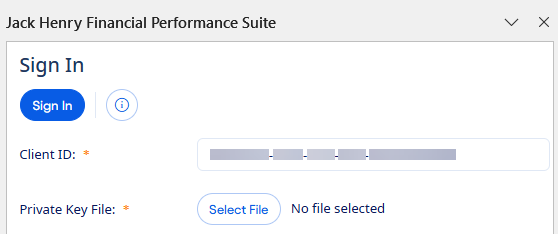
Select  About any time before or after you log in to view the copyright,
version, token server, and API server information.
About any time before or after you log in to view the copyright,
version, token server, and API server information.
You are logged out of the add-in if your session times out. The add-in uses the same timeout periods as FPS. Right-click anywhere in the add-in panel and select Refresh to log back in.