FPS Function Manager Formula Analysis
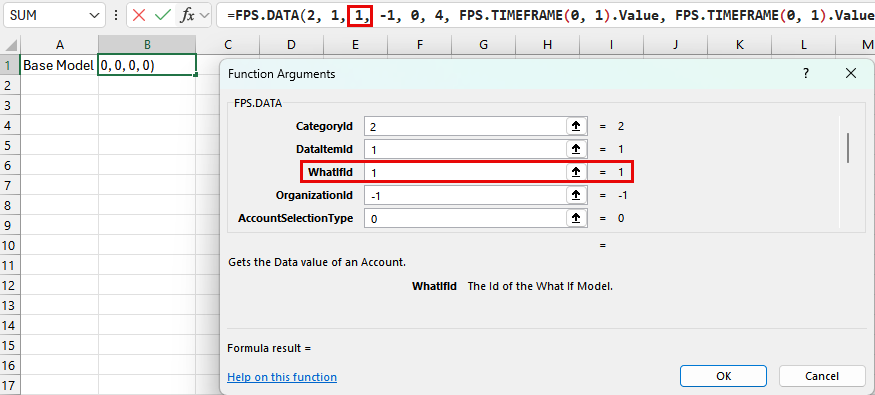
You can view formulas that were inserted from the Financial Performance Suite (FPS) Function Manager Excel® add-in from the Formula Bar, the Show Data Type Card option, and the Function Arguments option.
Formula Bar
You can view and edit formulas from the Excel®Formula Bar.
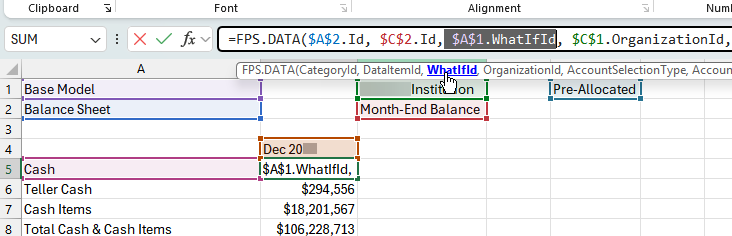
When you select a cell with a formula, the formula appears in the Formula Bar. If you select the formula in the bar, then a helper toolbar appears. As you select parts of the formula, the helper toolbar shows the corresponding formula name in bold.
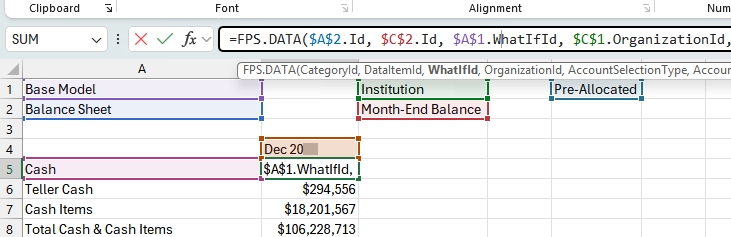
If you select the formula name in the helper toolbar, then the formula is highlighted in the Formula Bar.
Show Data Type Card
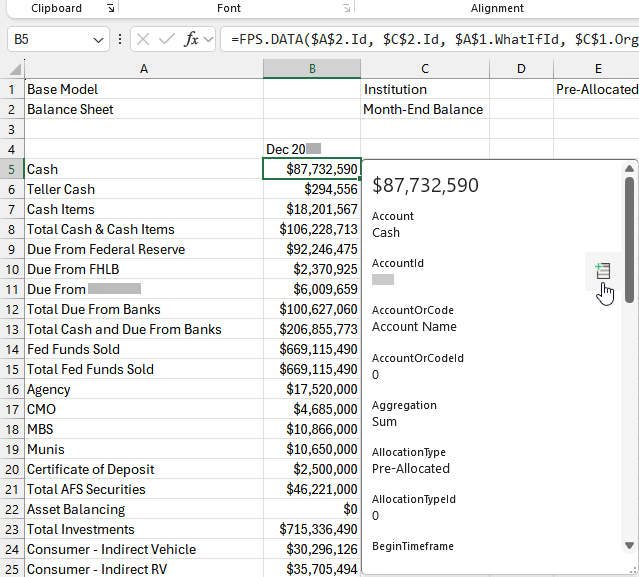
You can view formulas from the Excel®Show Data Type Card option.
When you select a cell with a formula, an  Insert Data option appears. You can view the fields that are used in
the formula, and select them to insert the value into the same row.
Insert Data option appears. You can view the fields that are used in
the formula, and select them to insert the value into the same row.
Select Insert Data, and then select Show Data Type
Card to open the Data Type Card.
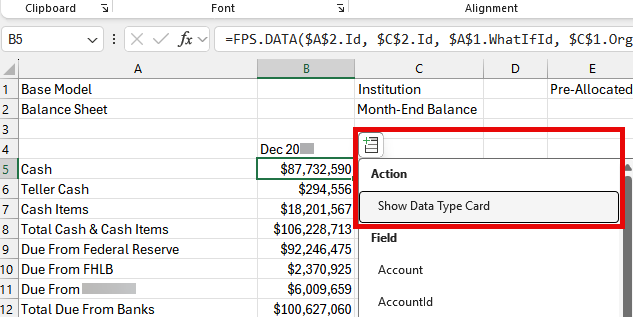
The Data Type Card shows the fields that are used in the formula and
the values associated with each field. Hover over a field, and then select Insert Data to insert the value into the same row.
Function Arguments
You can view and edit formulas from the Excel®Function Arguments option.
Select a cell with a formula, and then select  Function Arguments to open the Function
Arguments screen.
Function Arguments to open the Function
Arguments screen.
You can view and edit any part of the formula as needed.